Compose, reply, and forward
Send from Compose, manage attachments, and export a thread as PDF.
Write from the sidebar Compose button, or open /compose. Replies and forwards start from the open conversation.
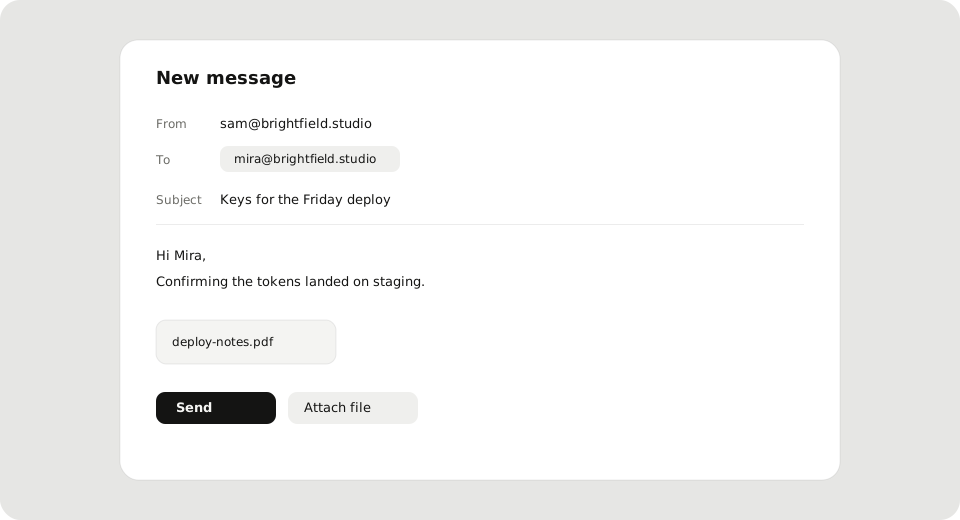
Write and send
- Choose Compose
- Confirm From if you have several mailboxes
- Add recipients in To (and CC/BCC when you need them)
- Subject, then body
- Send when uploads are finished
Keep the window open until file uploads complete. If an upload is still running, wait before you send.
Attachments
Use Attach file for files. Inline media and regular files both appear on the draft; remove anything you did not mean to include.
Large or many files: prefer one clear PDF or zip when colleagues need a durable copy. For a whole mailbox archive over a date range, use domain export instead: Export mail from a domain.
Reply and forward
In a conversation:
- Reply keeps the thread
- Forward asks for new recipients
Read-only accounts
If the account is scheduled to close, mailboxes become read-only. You can still read and export, but compose and changes are off until you restore during the roughly 7-day window. See Close or restore your account.
Save a thread as PDF
Message menu → Export as PDF builds a personal PDF of that conversation on your device. That is separate from the admin ZIP export under Domains.